|
ColorMatic Custom Modules |

|

|

|
 Installing a ColorMatic Custom Module
Step One: Installing the Module Download the mod_modulename.zip archive from the ColorMatic download section of the RocketTheme Joomla! Club. Login in to your administratior console on your Joomla! website and navigate to the Installers menu item, and select Modules from the dropdown menu. Download the mod_modulename.zip archive from the ColorMatic download section of the RocketTheme Joomla! Club. Login in to your administratior console on your Joomla! website and navigate to the Installers menu item, and select Modules from the dropdown menu.
In the Upload Package File section, click the Choose File button and select the mod_modulename.zip file you downloaded earlier. Next click the Upload FIle & Install button to install the module.
Step Two: Publishing the Module Now the module is installed it must be published in the appropriate module position and configured to suite our needs. From the top menu, select Modules then Site Modules. This will take you to the Site Module Manager which allows you to configure the placement and configuration of all modules in your joomla website. Now the module is installed it must be published in the appropriate module position and configured to suite our needs. From the top menu, select Modules then Site Modules. This will take you to the Site Module Manager which allows you to configure the placement and configuration of all modules in your joomla website.
Configuring the ColorMatic Custom Login Module
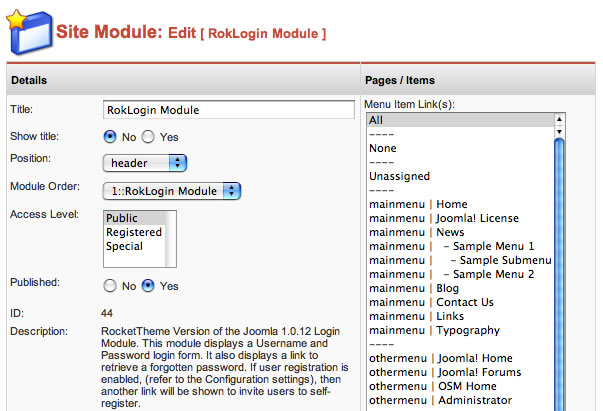
Often there's a need for a nice clean login module to complete the new professional site you are working on. However, the default Joomla! login module uses some ugly tables and you can't turn of certain things to get that svelte look you want so badly. RocketTheme has created a modified version of the default Joomla! login module built to fill this need and you can see it in action at the very top of this demo.
You can access the module configuration screen and edit the module by clicking on the module title of the module named RokLogin Form
The key parts to modify are as follows:
- Change the name of the module to Member Login
- Ensure the module is published in the correct position, header is the position reserved for this module in ColorMatic .
- Published is set to Yes
- Choose the Pages/Items where this module should be shown. The easiest solution is to choose All
- Lastly, this module has two new properties to cut down on the visual clutter, so we set the Forgot Password Link to Hide and the Auto-Remember property to True
Configuring the ColorMatic Latest News Module
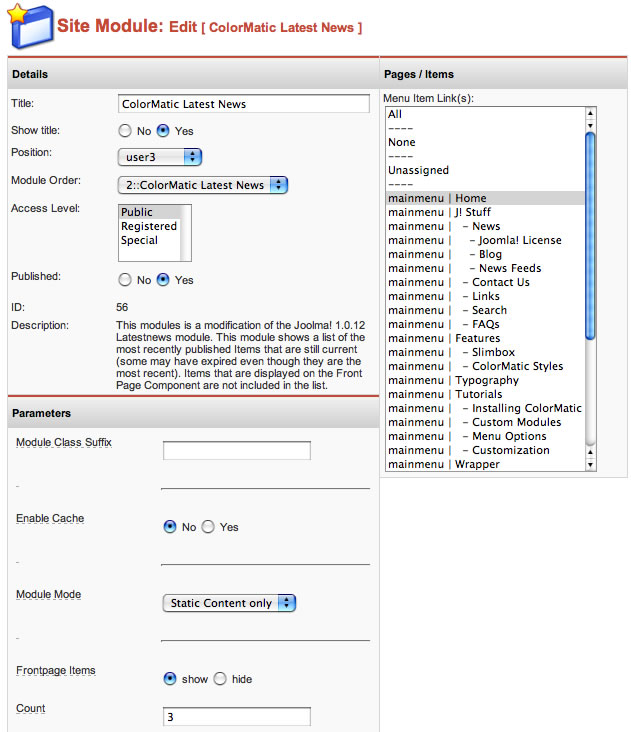
ColorMatic features a new custom Latest News module that adds a fun look and feel to your Latest News links.
This module is a modification of the Joolma! 1.0.12 Latestnews module. This module shows a list of the most recently published Items that are still current (some may have expired even though they are the most recent). Items that are displayed on the Front Page Component are not included in the list.
The key parts to modify are as follows:
- Change the name of the module to whatever name you desire.
- Ensure the module is published in the position you want it to display in on your site.
- Published is set to Yes
- Choose the Pages/Items where this module should be shown. The easiest solution is to choose All
- Set the "Parameters" of the module to reflect how and what latest news items you want to display. There are several options you can customize.
The Latest News module also displays an icon to the left of the news items. This icon is defined in the "template_css.css" and "style.css" files and can be changed to your specifications. By default, each color style contains a "latestnews.png" image that is used as the default icon (located in the rt_colormatic/images/style #/ folder). You can create your own icon and name it "latestnews.png" or you can change the css to use any image name you like.
Configuring the ColorMatic Flickr Module
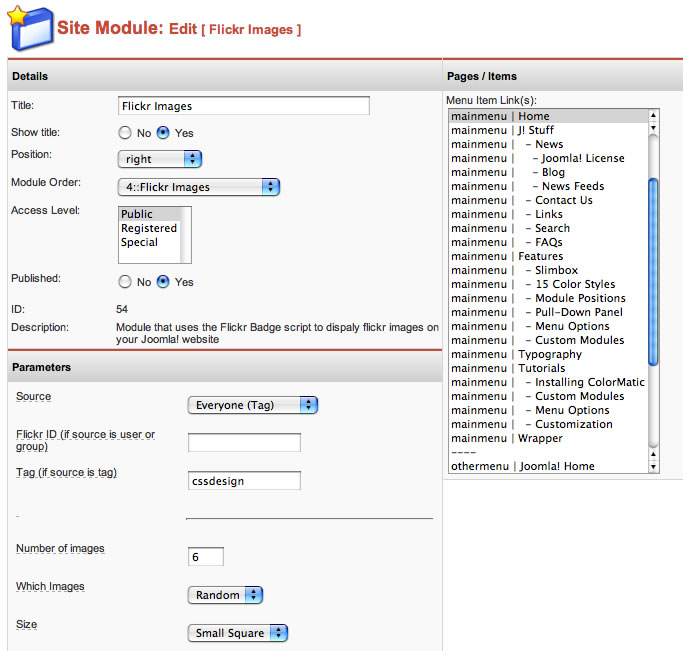
The ColorMatic Flickr Module uses the Flickr Badge script to dispaly flickr images on your Joomla! website.
The Flickr Images module configuration allows you to customize various aspects of the module to display Flickr images exactly the way you want them. You can customize the module by following these steps:
- In the Joomla Administrator, go to Site and then Site Modules. This will bring up a list of all of the installed modules. Find "Flickr Images" on the list and click on the title to go to the Module configuration.
- In the Module configuration, there are various options that you can customize to your needs including: Image Source, Flickr ID (User or Group), Tag (If source is set to Tag), Number of Images to display, Module display size, and more.
|


 ColorMatic comes with an unprecedented 15 color variations built-in. To check them out for yourself, just click on the "Open Control Panel" button at the top of the page and click on a thumbnail.